[Youtube Video] Samsung Smart TV Development Tutorial 03: Using the Convergence API to Detect External Devices
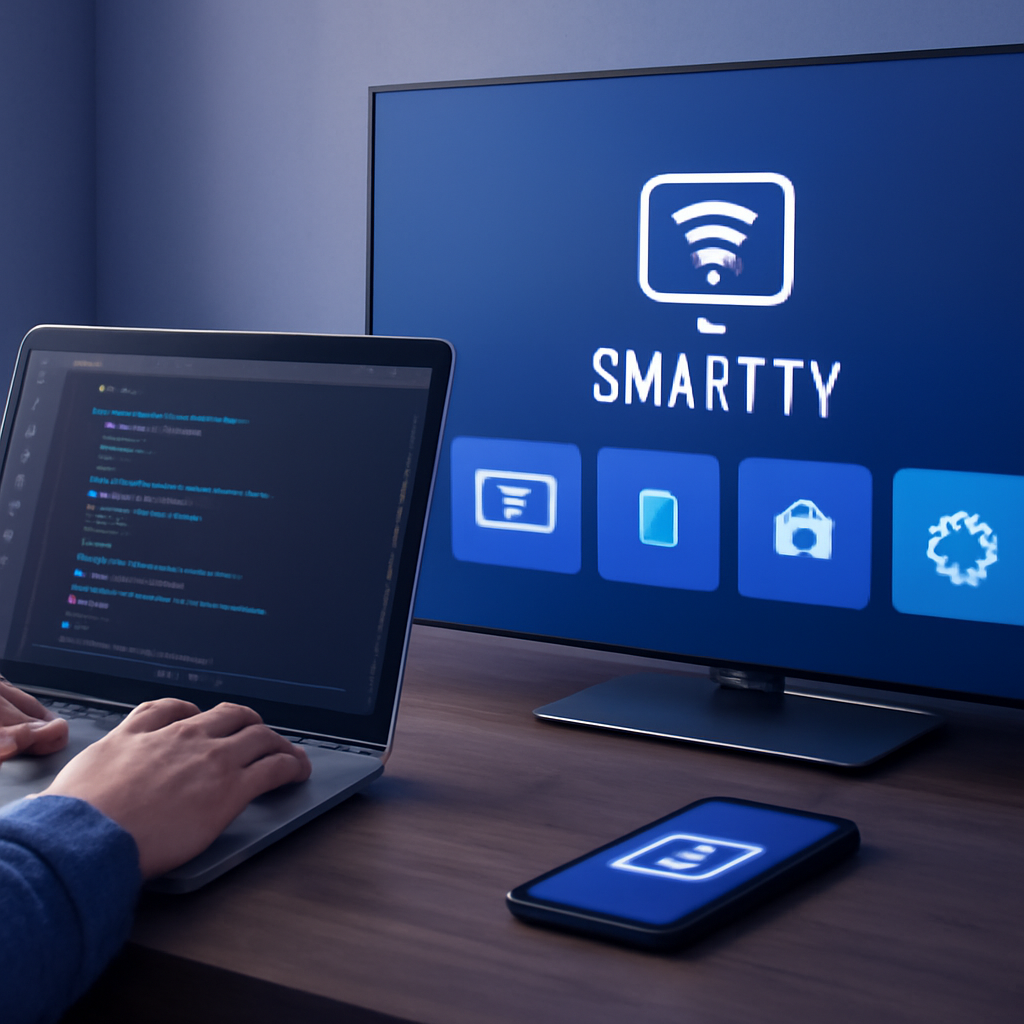
The Samsung Convergence API opens the door to connecting external devices — smartphones, laptops, keyboards, and more — directly to your Samsung Smart TV app. This tutorial lays the groundwork for using that API to detect connected devices.
What Is the Samsung Convergence API?
The Samsung Convergence API enables Samsung Smart TV applications to connect and communicate with a wide range of external devices. It uses Universal Plug-and-Play (UPnP) protocol as well as a REST-based interface to interact with devices such as smartphones, laptops, desktops, keyboards, mice, and other hardware. This makes it possible to build apps that extend far beyond the TV screen.
Why External Devices Connect to the Smart TV
External devices connect to a Samsung Smart TV for a variety of purposes:
- Exchanging data between the device and the TV app
- Sensing and syncing contacts
- Subscribing to TV content from a mobile device
- Using peripheral hardware like keyboards and mice as input devices
Setting Up the Project and Required Libraries
The tutorial begins by creating a new project in the Samsung Smart TV emulator. Three key library files are imported into the project’s index.html:
- widget.js — enables communication with the application manager, which handles app startup, shutdown, and core lifecycle functions
- webapi.js — provides web-based communication using standard network protocols such as HTTP
- serviceSample.js — the application code file where the Convergence API logic lives
Initializing the Convergence API
Inside serviceSample.js, the Web API library is accessed at the top level of the DOM — this serves as the main entry point to the Convergence API. The app initializes a main object with lifecycle methods including onLoad and onUnload. On load, the Widget API sends a ready event to the application manager to signal that the app is loaded and running.
Detecting Connected Devices
The tutorial implements several callback functions to handle device events. The registerManagerCallback function acts as an event handler that fires when external devices connect or disconnect. The getInServiceDevices function scans all ports on the Smart TV and retrieves a list of connected devices as device object arrays. When the device count is returned, the app displays it in a simple alert — in the emulator, with no physical devices connected, this shows zero.
Running the App in the Emulator
With the project selected in the Project Explorer, the app is run in the Samsung Smart TV emulator. Since no external devices are connected during the demo, the device count reads zero — but the foundation is fully in place. The next tutorial in this series builds on this groundwork by connecting to the Smart TV from an actual external application and sending and receiving messages.
Watch the full tutorial to see the Samsung Convergence API in action and get ready to build multi-device Smart TV experiences.