[Youtube Video] Using the Input Method Editor in a Samsung Smart TV Application
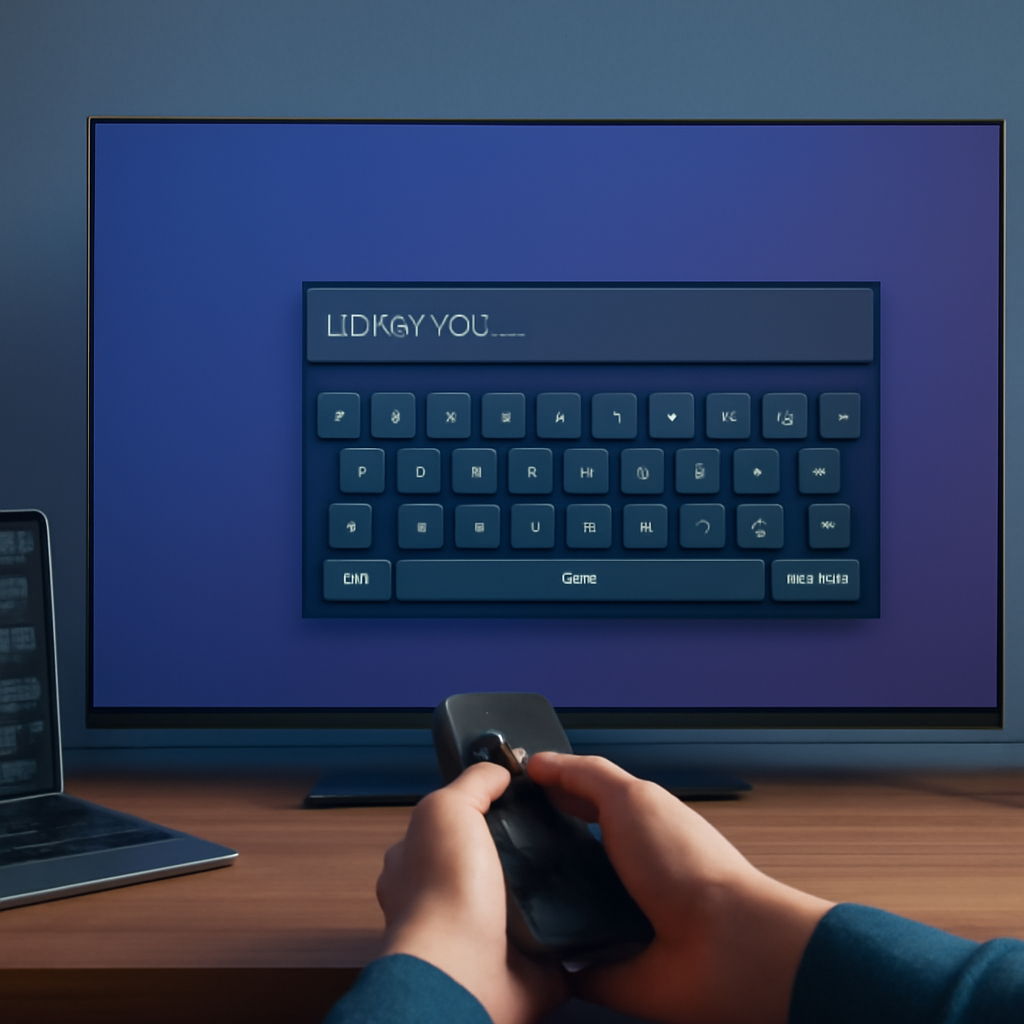
Text entry is one of the most challenging user interactions on a Smart TV, where the primary input device is a remote control with no physical keyboard. The Input Method Editor (IME) built into the Samsung Smart TV SDK solves this by providing an on-screen virtual keyboard that users navigate with their remote’s directional buttons. This tutorial covers the basics of integrating IME into a Samsung Smart TV application.
What IME Is and Why It Matters
IME stands for Input Method Editor. It is a plugin based on the XT9 protocol — a technology originally designed for devices with limited input capability such as small mobile keypads — that enables intelligent text entry with automatic suggestions. On a Samsung Smart TV, IME displays a virtual keypad on screen that the user can navigate using the directional and enter keys on the remote. It also handles internationalization, supporting text entry in multiple languages for apps deployed across different regions.
Adding the Required IME Plugins
IME support is not included in a default Samsung Smart TV JavaScript project, so three plugin files must be added manually:
- plugin.js — located at
manager/widget/Common/API/Plugin.js; acts as the bridge that links the IME plugin to your application - IME XT9 core file — located at
manager/widget/Common/IME_XT9/IMEShell.js; provides the core IME functionality - IME Input file — located at
manager/widget/Common/IME_XT9/IMEShell_input.js; adds text input box capabilities
One critical detail: IME must be initialized after the page body is fully loaded. Including IME scripts in the <head> will throw an error because IME needs the <body> element to be present when it runs. Place the IME script tags inside the <body> tag or load them dynamically after the document’s load event fires.
Setting Up the Text Input
Add a standard HTML <input type="text"> element and set its maxlength attribute to 256. This limit is important: IME supports a maximum of 256 characters, and exceeding it causes garbage characters to appear in the input field. Assign the input a clear id value — the tutorial uses plain-text — as this ID will be passed to the IME initialization function to link the virtual keyboard to that specific field.
Initializing IME in JavaScript
In main.js, initialize the Plugin API first with new Common.API.Plugin(), then configure the global IME settings by setting values on the IMEShell_IMEShell global object. The configuration parameters include:
- Language code (e.g.,
en_US) - Remote model ID — a numeric identifier for the Samsung remote type
- Country code
- TV model (leave blank to support all models)
Next, create the IME shell instance with new IMEShell(elementId, callbackFn, language), passing the ID of your text input, a callback function that receives the initialized IME object, and the language code. Inside the callback (named imeReady in the tutorial), use ime.setKeyFunction(88, imeClose) to map the Return key (key code 88) to a close function that calls ime.blur() to hide the virtual keyboard. Finally, register the IME with the application by calling pluginAPI.registIMEKey().
Showing and Hiding the IME Keyboard
The tutorial wires the Enter key handler (from TVKeyValue.js) to focus the text input and call ime.focus(), which brings the on-screen keyboard into view. The user then navigates the virtual keypad with directional keys, pressing Enter to select each character. Pressing the Return key triggers the imeClose function, which calls ime.blur() to dismiss the keyboard and return focus to the application.
Advanced IME Features
The basics covered here — initialization, showing, entering text, and hiding the keyboard — are just the starting point. IME also supports text prediction and auto-suggestions, numeric input mode, and multi-language input. These advanced capabilities will be explored in a follow-up tutorial. Watch the full video to see the complete IME integration demonstrated live in the Samsung Smart TV emulator.