[Youtube Shorts] How to Enable Developer Mode in Tizen TV
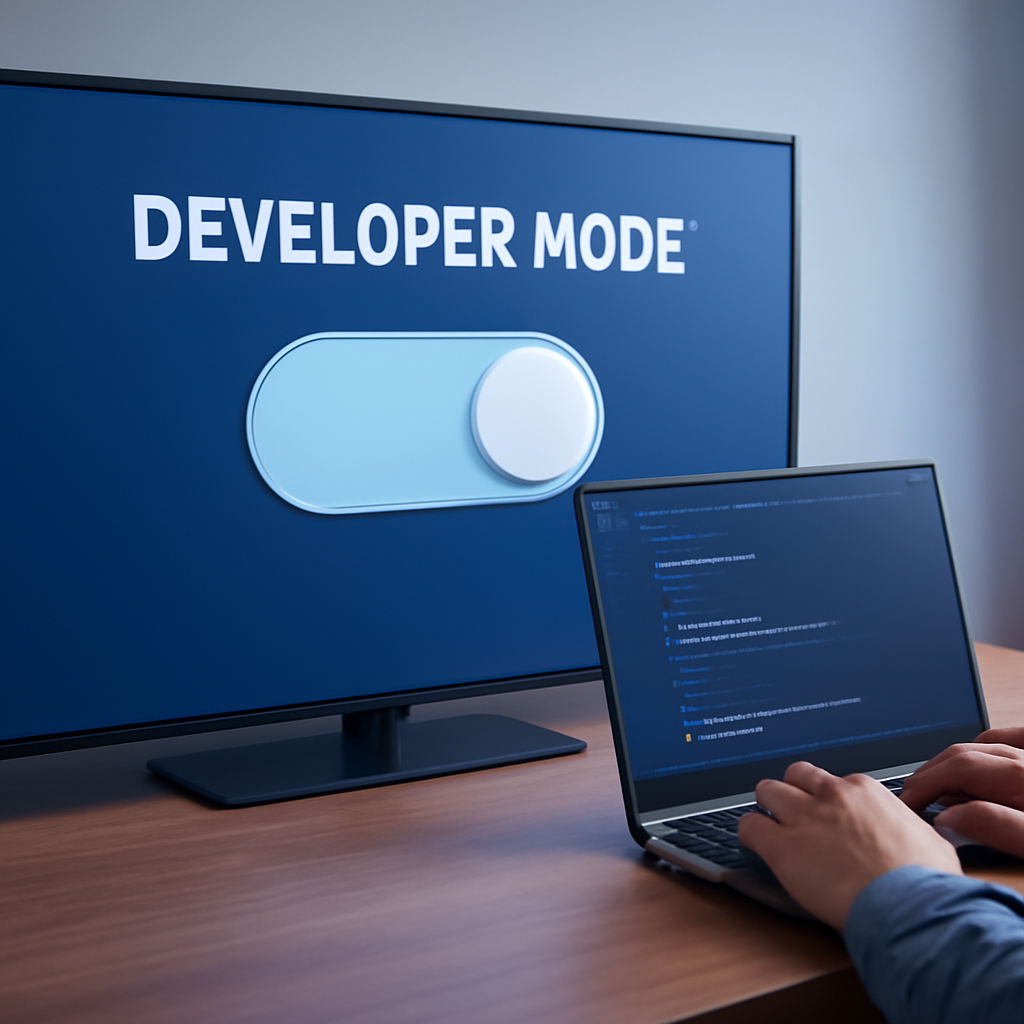
Before you can sideload and test your Tizen app on a real Samsung TV, you need to enable Developer Mode. Here’s how to do it in just a few steps.
Enable Developer Mode on Your Samsung TV
Start by powering on your Samsung Smart TV and opening the Apps section from the remote. Once you’re in Apps, press 1 2 3 4 5 in order on your remote control. A Developer Mode popup will appear — toggle it on and enter your PC’s IP address. If you’re on Windows, find your IP with ipconfig; on Mac or Linux, use ifconfig. After entering the IP, restart your TV to apply the changes.
Set Up Tizen Studio on Your Laptop
With Developer Mode active on your TV, it’s time to prepare your development machine. Install Tizen Studio from the official developer portal. Once installed, open a terminal or command prompt and use the SDB (Smart Development Bridge) tool to connect to your TV over the network. When the connection is successful, your TV should appear in the device list — confirming you’re ready to deploy.
Build and Install Your Tizen App
With your TV connected, you can now build your Tizen app as a .wgt file directly from Tizen Studio and install it onto your TV using SDB commands. Once installed, your app will appear and run on your Samsung Tizen TV — no separate app store submission needed for testing.
Watch the full video for a live walkthrough of each step and see how quickly you can go from zero to running your own app on a Samsung Smart TV.